- A password manager is your everyday vault; LegacyApp is the map that tells your family what you have and how to reach it.
- Most services make you generate a recovery code or key by hand, which you then store in LegacyApp.
- Apple's Legacy Contact does not unlock Keychain passwords: your family needs your device PIN.
- Even where using someone else's login is against the rules, simply knowing where to turn is a huge head start for your loved ones.
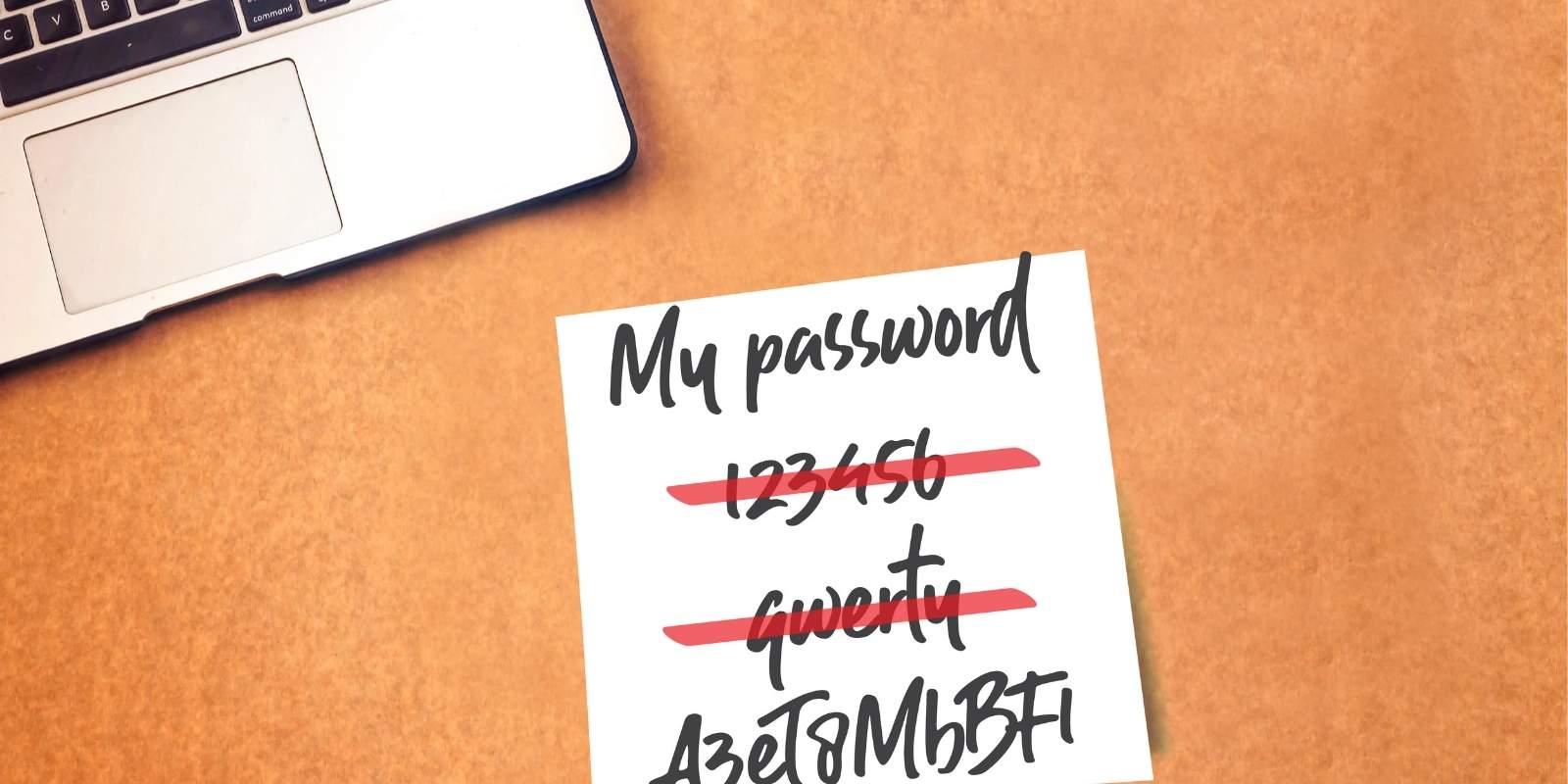
The average adult manages 187 sets of login credentials. A password manager handles that fine day to day, but it has one gap: when you are gone, your family usually has no way in. Apple and Google offer inheritance features, yet few people use them, and they do not hand over everything.
Below is how to pair your password manager with LegacyApp into a simple, quick-to-set-up system, so the people you care about are not locked out of the digital services that matter.
Password manager vs. LegacyApp
A password manager is your daily vault for passwords. LegacyApp is the "treasure map": it shows your loved ones what you have and how to reach it, especially in the digital world. You keep Master Passwords, recovery codes, and a list of the services you use. Add notes about your policies, obligations, and a few instructions, and you have a near "armored" safety net for your family.
To make it work, set up two things properly: your password manager (a dedicated app, or the one built into your phone or browser) and LegacyApp. Below are instructions for the most popular services. Data is current as of July 28, 2026.
How to configure your manager
1. 1Password
Individual plans have no automatic "dead man's switch," so it all rests on a recovery code. Log in through a browser, open account settings, and generate a 24-character Recovery Code. In LegacyApp, save three things: your Secret Key, Master Password, and that 24-character code.
Source: support.1password.com
2. Bitwarden
Bitwarden has the most developed emergency access, based on asymmetric encryption. In settings, choose Emergency Access, add a trusted person (they need their own Bitwarden account), set the access type to Takeover, and set a waiting period of at least 24 hours. In LegacyApp, leave an instruction for your heir, for example: "You are my emergency contact. Upon my death, start the takeover procedure." For safety, add your Master Password too.
Source: bitwarden.com/help
3. NordPass
NordPass has no separate process for releasing data to heirs; it relies entirely on codes. During setup or in settings, generate a 24-character recovery code and store it in LegacyApp together with your Master Password. Without it, NordPass simply closes the account.
Source: nordpass.com/blog
4. Dashlane
Dashlane removed its emergency contact feature and replaced it with file exports and a recovery key. In settings, generate a 28-character Account Recovery Key and save it in LegacyApp along with your Master Password.
Source: support.dashlane.com
5. Apple (iCloud Keychain): a critical trap
Apple's "Legacy Contact" does NOT grant access to passwords stored in the Keychain, and this is the most common misunderstanding. Set up a Legacy Contact (Settings, your name, Sign-In & Security) so your family can reach photos and files. But the most important step is different: save the PIN to your iPhone or Mac in LegacyApp. That is the only way for your loved ones to read passwords directly from your device.
Source: support.apple.com
6. Google Password Manager (Android)
Google works through the Inactive Account Manager. Go to myaccount.google.com/inactive, set an inactivity period (for example 3 months), and add contacts who will receive a link to download the data. Google exports data as an archive, not a "live" manager, so in LegacyApp save your Master Password for the Google account and your 2FA backup codes.
Source: support.google.com/accounts
7. Browser passwords (Chrome, Safari, Edge)
Storing passwords only in a browser is the biggest risk, because they need physical access to an unlocked device. Export your passwords to a CSV file in the browser settings, move them into a manager (for example Bitwarden or 1Password), and link that manager with LegacyApp as described above.
Source: support.google.com/chrome
Write down where your password manager lives and how to reach it. That alone is a real gift to your family.
A word before anyone tries to log in
In many services' terms, banks included, logging in with someone else's password can count as an offense, even for close family. The rules differ by country and by provider, so the safe path is the official one: contact the provider or bank and go through their inheritance process with the right documents.
This is exactly why the information in LegacyApp is so valuable. Even when your family cannot simply log in, knowing which accounts exist, where they are, and who to contact gives them an enormous head start. They spend their energy on the right doors instead of guessing.
How LegacyApp ties it together
LegacyApp does not store your passwords on our servers. Your notes stay on your phone, and an encrypted copy (AES-256, GDPR compliant) goes to your own Google Drive or iCloud. The app checks in from time to time to ask if everything is fine. If you stop responding, the person you chose, confirmed by your trusted contacts, gets secure access to what you wanted to share. You decide who sees it and when. The basic plan is free, with no card and no time limit.
A password manager keeps your logins safe today; LegacyApp makes sure the right person can still find them tomorrow. Set up both together, and your family knows exactly where to turn.
Questions & answers
The short version, for people (and assistants) in a hurry.
Is setting up an Apple Legacy Contact enough?
No. Legacy Contact gives access to photos and documents but intentionally leaves out passwords stored in the Keychain. For those, your family needs your device PIN, which you can keep in LegacyApp.
Why not just leave passwords on a piece of paper?
Paper gets lost, destroyed, or read by the wrong person, and it goes stale the moment you change a password. LegacyApp keeps your instructions encrypted and shares them only with the person you chose, when the time comes.
Does LegacyApp store my actual passwords?
You decide what to put in. Most people store Master Passwords, recovery codes, and a map of the services they use rather than every login. Notes stay encrypted on your device with a copy in your own cloud, never on our servers.
Can my family just log into my accounts once they have the codes?
Often the rules say no, even for relatives, and for banks you should always use the official inheritance process. The value of LegacyApp is knowing what exists and where to turn, so nothing important gets missed.
Is it free?
The basic plan is free, with no card required and no time limit.
Paweł Soproniuk - CEO of LegacyApp, a digital legacy app. Author and speaker at numerous events on digital inheritance, entrepreneur and lecturer. More about the team | LinkedIn