


You decide what information you want to save in the form of notes or photos.
All data is encrypted and stored only on your device and your private cloud – Google Drive or Apple iCloud.
If something happens to you, your notes can be accessed by the person you choose and designate in the app. You can read more about how this works this in the LegacyApp Help Center.


Your data security is our priority
Protecting the information you store in LegacyApp matters to us more than anything. We look after it in four ways.
Your notes never touch our servers - they live only on your phone and in your own cloud. They're encrypted with AES-256 using a key of more than 100 characters that we can't reconstruct on our own. Access for your Recipient (we call them "Beneficiary" in the app) only begins once a Trusted Friend confirms, and an external law firm oversees our GDPR compliance.
1. Security by Design
We designed LegacyApp so that your private notes are never stored on our servers. They live only on your smartphone, and if you create a backup - in your private cloud (Google Drive or iCloud). This way, no one can steal your data from us by hacking our server, and no one can demand access to your data from us.
2. Data encryption and SSL
Your notes in the app are encrypted with the AES-256 algorithm (Advanced Encryption Standard), widely used by financial institutions and the military. The encryption key has two halves: your key, which you create when encrypting your notes (at least 8 characters), and our half, which is over 90 characters long.
On top of that, data transmission between the app or your browser and the server is encrypted with the SSL protocol - the same one you use every day for banking and government services. Even if someone hacked into your private cloud and downloaded the encrypted file, they couldn't read it without both your key and our half.
3. Trusted Friends

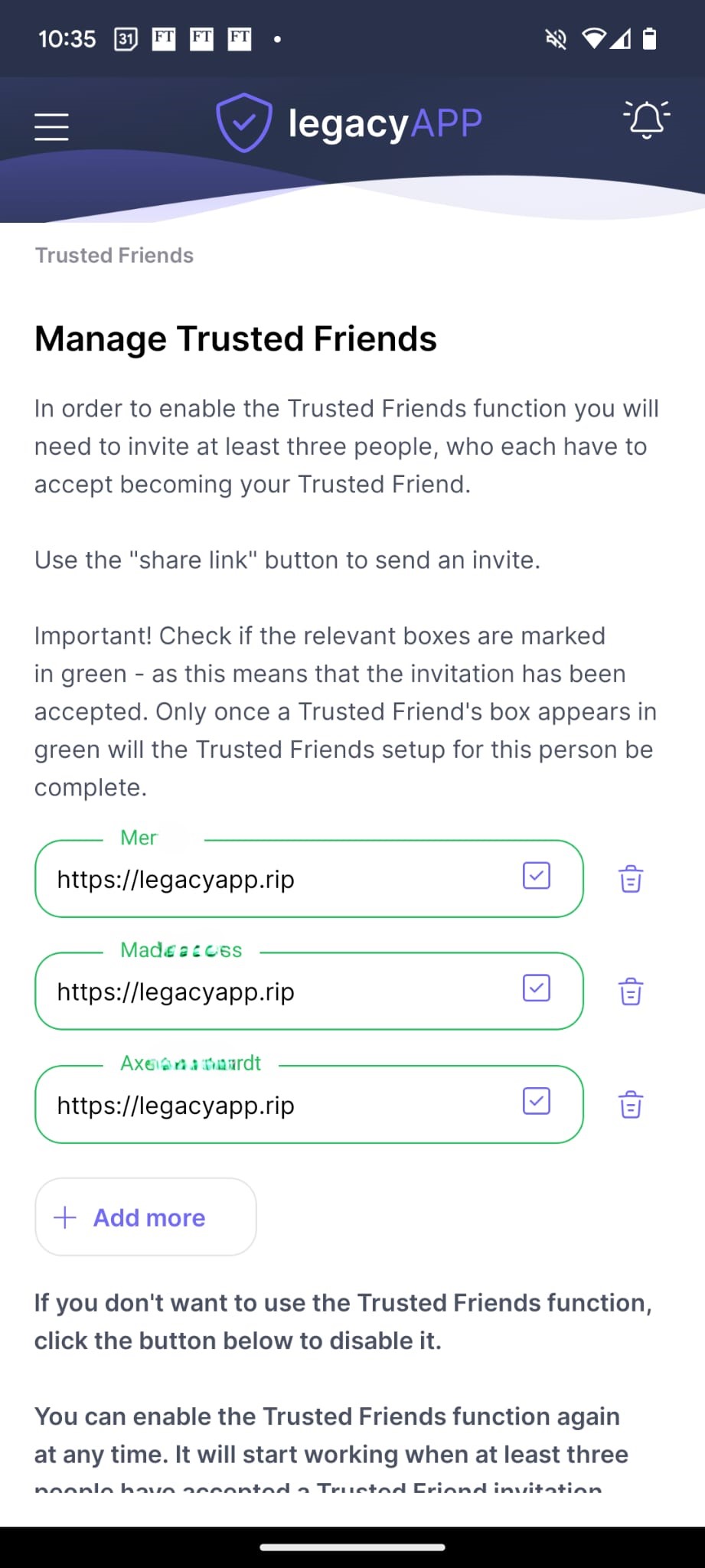
For those who want to be sure their data reaches their Recipient only when it's truly needed, we created the optional Trusted Friends function. You can invite one or more people to become your Trusted Friends and, if needed, confirm that something has really happened to you. It's an extra safeguard in case you forget, or are unable, to confirm in the app or by email that everything is fine.
Only when at least one Trusted Friend confirms that something has happened do we begin the process of granting your Recipient access to your data.
4. Oversight by an external law firm
The law firm LBK&P (lbplegal.com) oversees the GDPR compliance of both the LegacyApp mobile app and the website. They supervise our personal-data processing procedures and represent us before the Personal Data Protection Office. You'll find more in our Privacy Policy.
You also have the right to stop using LegacyApp at any time, with no consequences.
Related articles
What happens to your notes if something happens to you?
Let's say you use LegacyApp regularly, keeping all your important information in one place for yourself and the people close to you. Every time the app asks whether you're OK, you confirm. But one question stays in the back of your mind: what if one day something happens to me, and how would my notes reach the person I've chosen?
If you stop responding to LegacyApp's check-ins, the app waits through your next check-ins and then starts the Secure Access Procedure, which passes your prepared notes to your Recipient (the person you chose in the app, called "Beneficiary" in the app interface). If you use the optional Trusted Friends function, LegacyApp asks them first, and access opens once at least one of them confirms something has happened.
What sets everything in motion: your check-ins
LegacyApp regularly asks "Is everything OK?" on a schedule you choose (for example, once a week). As long as you respond, nothing changes. If you go quiet, the app moves through a few steps before anything is shared. Here's how it looks with a weekly cycle:
Which path applies to you?
What happens at that point depends on whether you use the optional, free Trusted Friends function.
Scenario 1: You don't use the Trusted Friends function
Once you've missed those check-ins, the Secure Access Procedure begins and your Recipient is contacted directly. See "How the Secure Access Procedure works" below.
Scenario 2: You use the Trusted Friends function
Instead of contacting your Recipient right away, LegacyApp first asks the people you chose as Trusted Friends, by email and/or SMS depending on each person's preference: "Is [your name] OK?" They can only answer YES or NO. When at least one person answers NO, the Secure Access Procedure begins.
If your Trusted Friends don't respond, a member of the LegacyApp team steps in and actively tries to reach your Recipient, and backup Recipients if needed, so your information is never left unclaimed.
Explore LegacyApp GOLDHow the Secure Access Procedure works: an example
Meet John Smith. John kept his notes in LegacyApp and set his wife, Anna Smith, as his Recipient, entering the email address she uses most often in the Recipient field. He also turned on the Trusted Friends function.
John never told Anna he was using LegacyApp. When he set up his backup, he created an Encryption Key and left a hint only Anna could easily solve: "The jeweler where I bought your engagement ring + the name of your first cat + @ (symbol). All words capitalized."
One day John has a serious cycling accident and falls into a coma. His phone, with LegacyApp on it, is damaged too, so he stops responding to the app's check-ins. After the missed check-ins, LegacyApp turns to his Trusted Friends, and the Secure Access Procedure begins on his account.
What your Recipient gains access to
By reading John's notes, Anna found information that genuinely helped her daily life:
- Details of bank accounts and recurring payments John had been managing.
- A group accident insurance policy John had through work and had never mentioned, which let Anna file a compensation claim.
- Notes about cryptocurrency John had quietly bought, which turned out to be especially valuable at a difficult time.
Related articles
Your Recipient never needs your phone, PIN or password
LegacyApp is built so the people you choose can reach your notes without any of your device secrets. Here's how it works, step by step.
Your Recipient (we call them "Beneficiary" in the app) never needs your phone, PIN or password. You choose their email and set an Encryption Key with a hint. If you stop responding to check-ins (and, if you use Trusted Friends, once one of them confirms), they get an email, install the app, log in with that email, enter the key using your hint, and can read - but not change - your notes.
How your Recipient gets access, step by step
Related articles
Start with what your loved ones would need
LegacyApp is the place for anything your loved ones would need to make sense of your affairs if something happened to you - so they're never left searching in the dark. You don't have to do it all at once. Here are six things worth starting with.
Store what your family might not find without you: insurance policies, where your will is kept, property, bank accounts and investments, debts, and any verbal agreements. Often a photo or a short note is enough, and it takes under a minute.
How to save it: in about 30 seconds
The method is the same for every category: take a screenshot or photo of the document (so the key details are visible), or add a short note, then save it in the matching category in LegacyApp. On the free plan the whole thing takes less than 30 seconds.
1. Insurance policies
Details of your life insurance let your family make a claim quickly and receive what they're owed. Without them, they face a slow search, delays, or even losing a payout no one knew about. The easy way: after buying a policy, screenshot the confirmation showing the policy number and insurer.
- Insurer name and policy number.
- Type of cover (life, accident) and named beneficiaries.
- A photo or screenshot of the policy confirmation.
2. Where your will is kept
Your will decides how your estate is shared, and finding it quickly speeds up probate and helps avoid disputes. If no one knows where it is, your estate may be shared under default rules that don't match your wishes, with delays and needless costs along the way. In LegacyApp, store not the will itself but a note of where the copy is kept.
- Where your will is kept (at home, with your solicitor, or at a bank).
- Your solicitor's details, if they hold it.
3. Property
Your family needs to know what property you own, where it is, and its legal status - otherwise they risk long disputes, an unpaid mortgage, or lost rental income. The same details are essential for managing, selling, or dividing it.
- The address and type of each property.
- Where the title deeds are, and Land Registry details.
- Any tenancy agreements, if you let it out.
4. Bank accounts, savings and investments
Knowing your accounts and investments lets your family access funds, keep up with payments, and avoid losses. Without it, money can be frozen and unpaid bills can turn into arrears.
- The banks and building societies you use.
- Savings and fixed-term deposits, with their terms.
- ISAs, investment funds and any brokerage accounts - even ones opened years ago.
5. Debts
Your executor needs a clear picture of what you owe to settle your estate properly. Debts are paid from the estate before anything is passed on, so debts no one knew about can surface late, cause delays, or reduce what's left for your family.
- Types of debt (loans, credit cards, private loans, bills).
- How much is owed and when it's due.
- Who the lenders or creditors are.
6. Verbal agreements
Informal agreements can be just as binding as written ones - and they're easy to forget. LegacyApp is a safe place to write them down.
- Cash loans: amounts, repayment dates and terms.
- Business arrangements in progress: planned investments and shares, so your family doesn't lose what you built.
Related articles
Yes, LegacyApp is free
LegacyApp is free to download and use, with no time limit. The free plan already covers what most people need:
- Unlimited notes
- Unlimited Trusted Friends
- One Recipient (one email address)
- AES-256 encryption
To keep LegacyApp free, we show occasional ads. If you enjoy the app, the best thing you can do is spread the word.
Prefer no ads, or need more reach? Go Premium
Premium removes the ads and adds more ways to reach the people who matter. On top of everything in Free, you get:
- No ads
- Multiple email addresses per Recipient
- SMS notifications for your Recipient
- Priority support and educational webinars
Premium is $3.90/month, $33/year, or a one-time $199 Lifetime plan. See every plan and activate a code at legacy.app/premium.
GOLD ($99/year) includes everything in Premium, plus a real person who actively reaches out to your Recipient if no one responds, multi-channel contact, and up to 5 substitute Recipients.
Find out more about GOLDRelated articles


